

Infinite Canvas
Arrange creative work on a local canvas and use 1route.dev for images and web chat.
Open 1route.dev Infinite Canvas
Infinite Canvas runs alongside the image website. Organize prompts, references, generated images and conversations in a project using nodes and connections.
Start creating
- Create or import a canvas and edit local nodes and references.
- Sign in with your existing 1route.dev account when you need image generation or web chat.
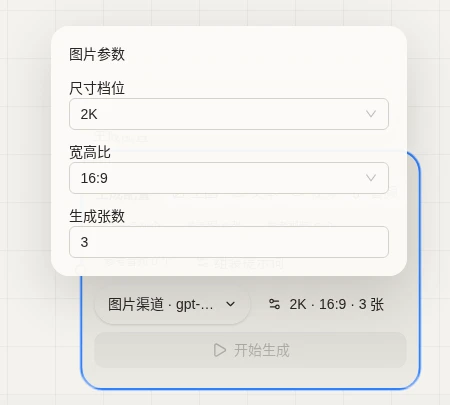
- Select image and chat channels and models separately. Image parameters come from your account catalog; no API Key entry is required. View detailed prices on the main site.
- Submit an image and follow its progress in the original node or the image task panel.
Sign-in returns to your project and preserves the draft. Submit again to start generation. Signing out of Canvas does not sign you out of the image website.
Use the image node settings to choose a size tier and aspect ratio, such as 2K and 16:9. Auto size leaves the aspect ratio unspecified; choosing a specific tier enables ratio selection.
Choosing a channel and model
Open the chat or image model picker, choose a channel on the left, then choose a model on the right. Search by channel, model name or provider. The current selection is marked; browsing another channel does not apply a new model.
Use image models for image generation and chat models for writing or image questions. Judge a chat model using its provider documentation and your results. Compare availability and detailed pricing across channels in the main-site model plaza. The picker no longer lists every pricing detail. Long channel names stay on one line and scroll when selected or hovered. Refresh the catalog from the dialog header.
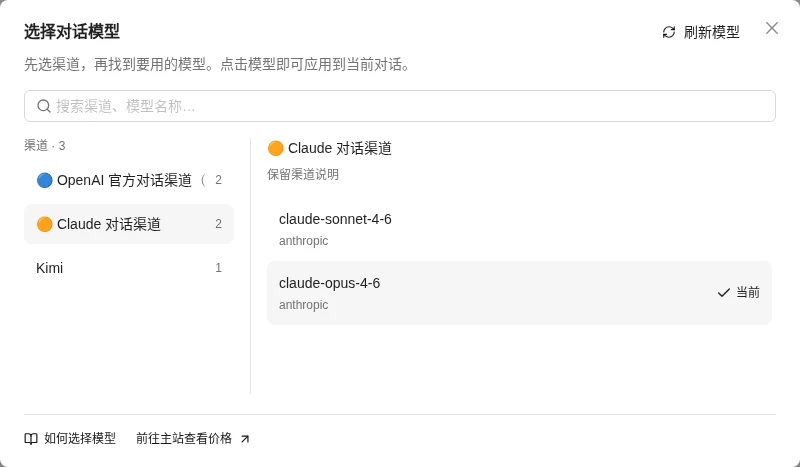
The screenshot shows the Chinese interface with example channels and models. Available choices come from your account catalog.
Saving and recovering tasks
Projects, assets and downloaded originals are stored in this browser. Export projects or configure your own WebDAV sync; signing in alone does not sync your work.
SVG results and imported SVG assets can be viewed on the canvas with local thumbnails. Inserting an asset into a canvas node preserves its original format. Downloads from the image page, assets, and canvas nodes, as well as project and node ZIP exports, retain the .svg original. Thumbnails are only for display and do not replace SVG originals with raster images.
Closing the page or signing out does not cancel submitted image tasks. Refresh to reconnect, or recover an existing task from the image task panel. Recovery requires the original account and channel credential; another Key cannot replace it. Cancellation follows the server's actual state, and completed images remain available.
For recent account requests or batch downloads, open the image workbench from the image task panel. The workbench guide explains its history range and retention period. Opening the workbench does not regenerate images.
Tasks brought in through import, copying or WebDAV are paused. Choose recovery explicitly to read the original task without generating again. Export work you want to keep long term.
Connecting a local agent
If your tools are not installed, open 1 Route Portal and download the application for your system. Portal can install Codex and Claude desktop applications and configure their 1route connection. Install CLI tools such as Codex CLI and Claude Code using Portal's official instructions, then return to detect and configure them.
Next, return to the Canvas Agent connection page. Use the Infinite Canvas plugin to start the connection, or run npx -y @basketikun/canvas-agent@latest and enter the local address and connection token. Portal configures your tools; Canvas Agent connects your local tools to the canvas. These are separate steps.
Canvas retains the upstream Codex sidebar and Claude Code MCP integration. Installing Claude Desktop does not add a Claude sidebar to Canvas.
Audio, video and local configuration
Audio and video retain the upstream setup: enter your provider URL, Key, model and supported parameters. The selected provider handles their tasks and charges. This release does not use 1route.dev audio/video catalogs or balance.
Local Canvas Agent, Codex and Claude Code use the tools and configuration on your computer. When they invoke the website's image capability, it uses the Canvas 1route.dev account. User-configured audio/video Keys retain upstream local storage and export behavior. Automatically resolved 1route.dev Keys stay in memory and are excluded from project and configuration exports.
Based on basketikun/infinite-canvas, with attribution to the original project and author.